03-More-information
This chapter contains more information about creating collections and editing pages.
3.1 The collection
For most of your work, you would use the collection for your language. But there are times when you will want to either switch to another collection or create a new one.
To create a collection
- Click the Other collection button

_The Open/Create Collections dialog box opens_.
- Click on Create a new collection..

_The Create New Bloom Collection dialog box appears_.
- Click on Venacular/Regional Language Collection.
- Click Next.
- Select the primary language for this collection. (e.g. French) and then click Next.
- Enter the country (Chad), then click Next.
- Choose the font (Andika) and click Next.
- Enter the project name and click Next.
- Click Finish.The main window appears.
tip
At the top of the window, the name of your new collection and the Bloom version number are displayed. Now you are ready to add a book to your collection.
Choose another collection
- From the main window:
- Click on Other Collection. The Open/Create Collection dialog box appears.
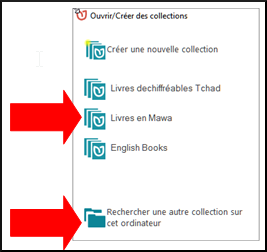
- If your collection is in the list,
- Click on the name of the collection. [1]The main window reappears.
- If your collection is not in the list,
- Click on Search for another collection on this computer [2]A list of folders will appear
- Double-click on the folder with the project name
- Double-click on the file with the project name.bloomCollectionThe main window reappears.
3.2 The page
Rearrange the pages of the book.
- Drag and drop the icons in the “Pages” pane.

Deleting a Page from a Book
- Right click on the page in the “Pages” pane.
- Choose Remove Page
- OR Click on the icon at the bottom of the pages.
- The page is deleted
- OR Click on the icon at the bottom of the pages.

3.3 Text
Edit the book - format the text.
Format the text by clicking on the grey command icon
The Format dialog box is displayed.


- Choose the style of the text box [1].
- Click on the Characters tab [2].
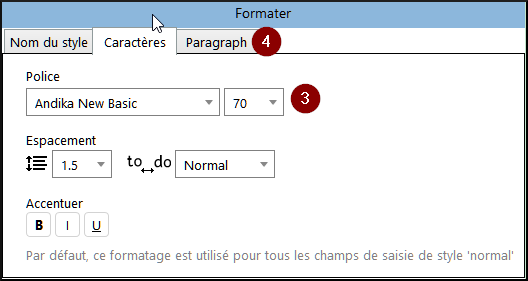
- Choose the formatting of the font (e.g. font size 18) [3]
- Click on the Paragraph tab [4]
- Choose any other formatting you want.
- Click on any other part of the page to close the box.The box is closed.
3.4 Pictures
Add (change) a picture [5]
- Click on the “Add (change) a picture” icon.
- Click on the “Change Image” icon.

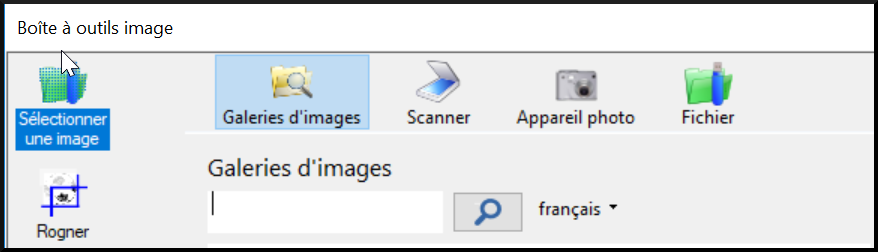
- Click on Image galleries.
- To search for an image, type a word and press Enter.
- Select an image.
- Click OK.
Paste an image
Copy an image to a program other than Bloom and return to Bloom.
Click on the Paste Image icon in the image frame.

_The image is displayed_.
Add license information for all images
- Display a page with the image.
- Click on the question mark of one of the images

- Fill in the license information for the image.
- Click on OK.Bloom may ask you if you want to copy this data to all other images in the book.
- Click on Yes .