5 Shell Books
Introduction
In this module, we will learn how to create a shell book (in French) that others can use to create books in their own languages.
Where are we now?
You have already made books in a vernacular collection. Now we are going to learn how to make books in a source collection. We can share these books with others to make them in their languages.
Why is this important?
In Bloom, there are two types of collections. A vernacular collection contains books for a specific language. A source collection contains books in a language like French. Then books that can be shared and translated into vernacular languages.
When you want to create a book that others can translate into their own language, you have to create them in a source collection so that they can be shared with a Bloom pack.
What will you do?
- First we will create a new source collection and then create a shell book.
- Then we will make a Bloom pack for this collection that can be sent to others to create books in their language.
5.1 Creating a source collection
- 1. If necessary, launch Bloom
- 2. Click on the
 button Other collection.
 - 3. Click on Create a new collection.
- 4. Click Source Collection.
- 5. Click on Next.
- 6. Enter the name of the project (e.g. My Shell Books) and click Next.
- 7. Click Finish.
Change languages
By default, Bloom sets Language 1 and Language 2 to English. You need to change the languages to French.
From the main window (i.e. Collections):
Click on Settings.
Click on the Languages tab
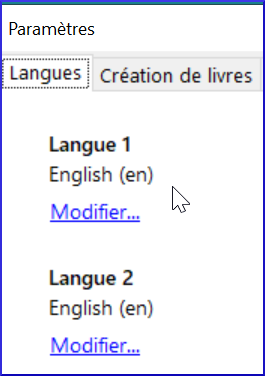
To change Language 1 to FR
Click on the blue Change link

Type space then en
Choose the language French
Click on OK
repeat for the second language (Language 2 > FR)
5.2 Creating a shell book
Check the layout pack
If you are creating A6 books, you can choose "Economy mode for paper".
- From the main window:
- Click on Settings.
- Click on the Book Creation tab
- Set the layout pack around the cover to Paper saver.
- Click OK.
Create a book
You create source books in the same way as before.
- Click on a template such as Basic Book.
- Click Create a book from this source.
5.3 Complete the book as desired
Fill in
- the cover
- the title page
- Add the pages
- Add text
- Change the images
- Fill in the credits page.
5.4 Bloom Pack
You use Bloom packs to share books from the source collections with other users. Before you can use a book in a Bloom pack, you must create and install it.
Creating a Bloom Pack
Click the Collections tab.
On the toolbar, click Make Bloom Pack.

Type a name for the Bloom pack file and click Save.
The Bloom pack is created and ready for distribution.
Close Bloom
Installing a Bloom pack
Before you can use a Bloom pack, you must install it.
Normally you would copy and paste it to another computer. For now we will install it on your computer to test it.
Open a File Explorer window in the folder.
Double click on the Bloom pack file.
Bloom will add the collection and display a message when it is finished.Click OK to close the message.
Bloom will restart.
Use the shell books in a Bloom pack
In the Source for New Books pane, scroll down and select the desired book.
Select Create a book from this source.
The book is created and each text box shows the text to be translated in a yellow bubble.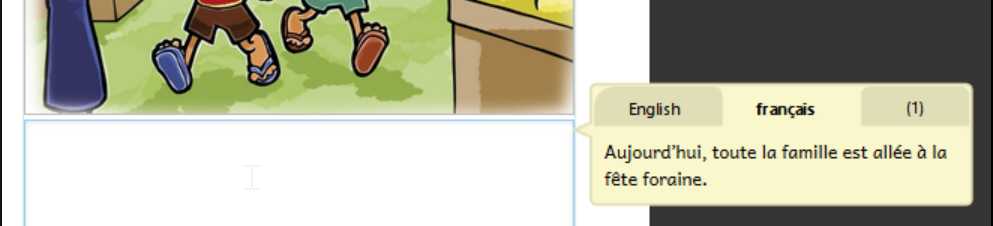
Click on the text box
Translate the text displayed in the balloon into your language and type it into the text box.